How to Add Page Numbers in Word (Step by Step)
Learn the exact menu steps for adding page numbers in Microsoft Word, skipping the cover page, restarting numbering, and fixing common problems in a business proposal.
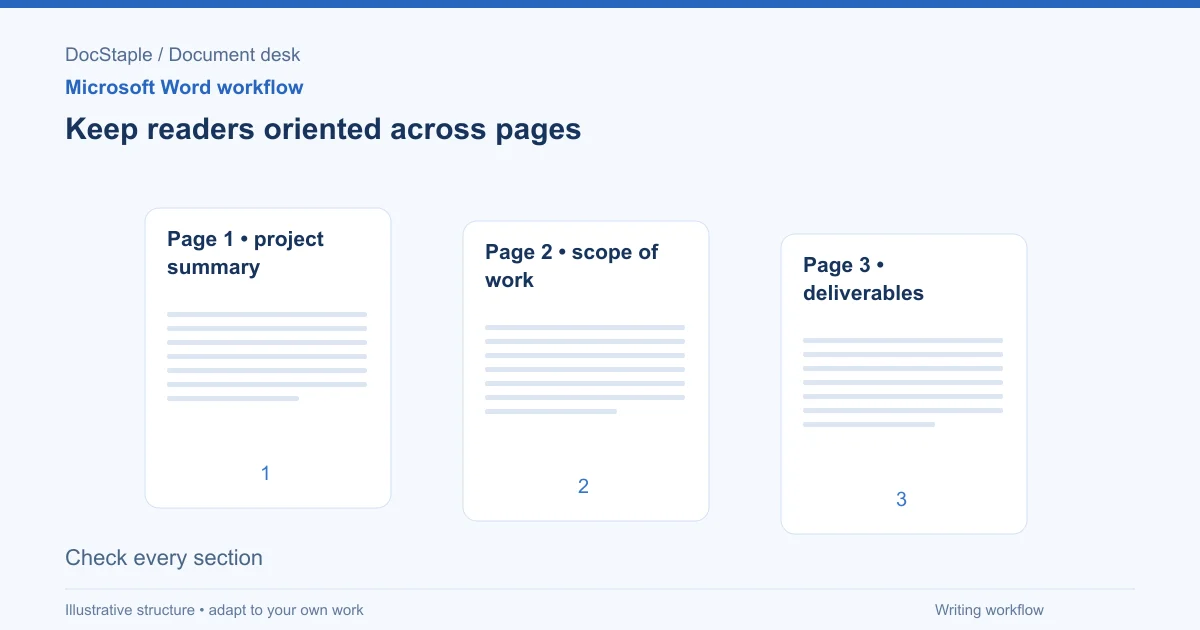
A page number is a small detail that does real work in a proposal. When a client sponsor, a procurement reviewer and your own engagement lead all read the same document, page numbers let them say "see page 7" and be sure they mean the same page. They also make it obvious if a printed copy has lost a sheet.
This guide covers the menu steps in Microsoft Word, then applies them to a consulting proposal that has a cover page, a table of contents and a body.
Which Word versions this covers
Microsoft's guidance on inserting page numbers applies to Word for Microsoft 365, Word 2024, Word 2021, Word 2019 and Word 2016, on both Windows and Mac, according to Microsoft's page numbering article. Word for the web has a smaller set of options. Microsoft's Page X of Y article for Word for the web says to use the desktop version of Word for more advanced options, such as different numbering in different sections.
The steps below use the Windows labels. Mac menus differ in places, and this article notes where.
Add basic page numbers
- Open the document and go to the Insert tab.
- Select Page Number.
- Choose where the number should appear, such as the bottom of the page, and pick a style.
- Select Close Header and Footer, or press Esc.
Word numbers each page for you once you have picked a style. To edit the numbering later, double-click the header or footer area where it sits.
On a Mac, the route starts the same way: on the Insert tab, select Page Number, then choose a location and alignment. To change the numbering style, select Format and choose your formatting, then select OK twice to close both dialog boxes.
A practical choice for proposals is the bottom of the page, either centred or aligned to the outer edge. Keep the number away from the top of the page if your header already carries the client name and engagement title, so the two do not compete.
Leave the cover page unnumbered
Most proposals open with a cover page that should not show a number. Microsoft describes the approach on Windows this way: select Different First Page on the Header & Footer tab. The tab appears when you are working in the header or footer, so double-click the footer area first.
With this option on, the first page carries no number, and the second page still shows as page 2. That is usually what you want in a proposal: the cover is page 1 in the count, but the reader never sees it labelled.
If you would rather the first numbered page read "1", Microsoft gives a second setting. Go to Page Number > Format Page Numbers and set Start at to 0. With Different First Page also on, numbering begins at 1 on the second page.
Restart numbering after the front matter
A longer consulting proposal often has a cover, a table of contents and perhaps a one-page summary before the main content. You may want the body to begin at 1 and the front matter to use a different style, such as i, ii, iii.
Microsoft's article on different page numbers in different sections gives these steps for Windows:
- Place the cursor between the front matter and the body, then go to Layout > Breaks > Next Page.
- In the header or footer of the body section, deselect Link to Previous.
- In the front matter section, select Page Number and choose a location and style.
- Select Page Number > Format Page Numbers.
- Use Number format to choose a format, such as i, ii, iii for the front matter.
- Under Page numbering, choose Start at and type the number the section should begin with.
- Select Close Header and Footer.
Microsoft also notes that headers and footers are linked separately. If your page number sits in the footer, turn off linking for the footer. If it sits in the header, turn it off for the header.
Word for Mac has its own version of these steps, described in Microsoft's Word for Mac article on different page numbers in sections. Follow that article rather than the Windows sequence if you work on a Mac.
Show "Page X of Y"
For a proposal that may be printed and signed, "Page 3 of 10" is often more useful than "3". A reader can see at a glance whether the set is complete.
In desktop Word, Microsoft's guidance on including the total number of pages says to go to Insert > Page Number, choose Current Position if you already have content in the footer or choose a location, then scroll to a Page X of Y format and select it. In Word for the web, go to Insert > Page Numbers and select Include Page Count.
One editorial caution: if you restart numbering after the front matter, test the result before you send the file. Check that the "of Y" figure still reads sensibly next to the restarted number. If it does not, use a simple page number in the restarted section instead.
Worked example: a consulting proposal
Suppose you are finalising a proposal for a strategy review engagement. The document has a cover page, a table of contents, and six body sections: client need and proposed outcome, scope and deliverables, delivery approach and timetable, fees and acceptance, document preparation and review, and approval and next actions.
A simple approach that works for most documents of this length:
- Put the cursor in the footer of the cover page and turn on Different First Page so the cover shows no number.
- Insert the page number at the bottom centre, and choose a Page X of Y format so a printed copy is easy to check.
- Save, then scroll through the document and confirm the numbers run in order.
For a longer document with front matter, use the section-break method instead: front matter in lower-case Roman numerals, body starting at 1.
Once numbering is in place, you can write it into the document itself. Here is draft language for the approval section:
This proposal is issued as a complete document. Each page carries the page number and total page count in the footer. Please confirm you have received every page before signing below. If any page is missing or out of order, contact the engagement lead before approving.
That wording is a suggestion. Adjust it to match how your organisation issues documents, and have the engagement lead confirm it before it goes to a client. If you would rather start from a prepared structure, the consulting proposal template is an editable Word file with the same kind of sections, and the page-number steps above work in it the same way.
Common problems and how to fix them
Every section shows the same number, or the number will not restart. The section is probably still linked to the one before it. Make sure a Next Page section break exists, then deselect Link to Previous in the header or footer of the later section before you change Format Page Numbers.
The cover page shows a number. Double-click the footer area of the first page and check that Different First Page is selected on the Header & Footer tab.
The wrong number appears on the first numbered page. Open Page Number > Format Page Numbers and check the Start at value. Microsoft's example for beginning at 1 on the second page uses a Start at value of 0 together with Different First Page.
A restarted section begins at the wrong place. Check which section the cursor is in when you open Format Page Numbers. The setting applies to the section you are in, so a value entered in the wrong section changes the wrong pages.
You cannot edit the footer at all. The document may have protection turned on, or you may be in a view that limits editing. Check whether Review > Restrict Editing is active, or whether the file opened in Protected View or as read-only. Ask the document owner to lift the restriction, make the change, and reapply it if needed.
Advanced options are missing. If you are working in Word for the web, switch to the desktop app for section-specific numbering, as Microsoft advises.
Final check before you send the document
Before the proposal leaves your team:
- Scroll through every page and confirm the numbers run in the order you intended, including after the section break.
- Confirm the cover page is unnumbered, if that was the plan.
- If you used Page X of Y, check that the last page shows the same total as the pages the client will receive.
- Save the file, close it, and reopen it. Confirm the numbers are still correct and the footer displays as expected.
- Export a PDF if that is how the client will receive it, and check the numbers again in the PDF. Pagination can differ between the editable file and a converted copy, so the PDF is the version to verify.
- Ask a colleague who has not worked on the file to flip through a printout or PDF and report anything that looks out of place.
Page numbering is quick to set up, and it is easiest to fix before a document is circulated. Once several reviewers have marked up page references, changing the numbering causes confusion.
Sources: Insert page numbers — Microsoft Support, Add different page numbers or number formats to different sections — Microsoft Support, Include total number of pages in the page number — Microsoft Support
Last updated: September 26, 2026
Frequently Asked Questions
Related Articles
How to Add a Signature in Word (Line, Image or Digital)
Learn three ways to add a signature in Microsoft Word: a plain signature line, a scanned handwritten image, and a Microsoft Office signature line, with a consulting proposal example.
How to Add Headings in Word (Apply Styles, Check Structure and Fix Problems)
Add headings in Word with built-in heading styles, customize them once, check the structure in the Navigation pane and fix common problems, using a consulting proposal as the example.
How to Compare Two Word Documents (Compare, Combine and Side by Side)
Compare two versions of a Word document with Review > Compare, know when to use Combine instead, and run a final check on the result, using a consulting proposal that came back from the client with edits.
How to Create a Template in Word (Save, Reuse and Edit a .dotx File)
Build a reusable Word template from a finished document, save it as a .dotx file, find it again under New, and check it before anyone uses it, using a consulting proposal as the worked example.
How to Create Fillable Forms in Word (Content Controls Step by Step)
Build a fillable form in Microsoft Word with content controls: show the Developer tab, add text, drop-down, date and check box fields, protect the form and test it, using a consulting proposal intake form as the example.
How to Insert a Table of Contents in Word (Step by Step)
Learn the exact menu steps for inserting an automatic table of contents in Microsoft Word, why headings matter, and how to fix common formatting problems.