How to Compare Two Word Documents (Compare, Combine and Side by Side)
Compare two versions of a Word document with Review > Compare, know when to use Combine instead, and run a final check on the result, using a consulting proposal that came back from the client with edits.
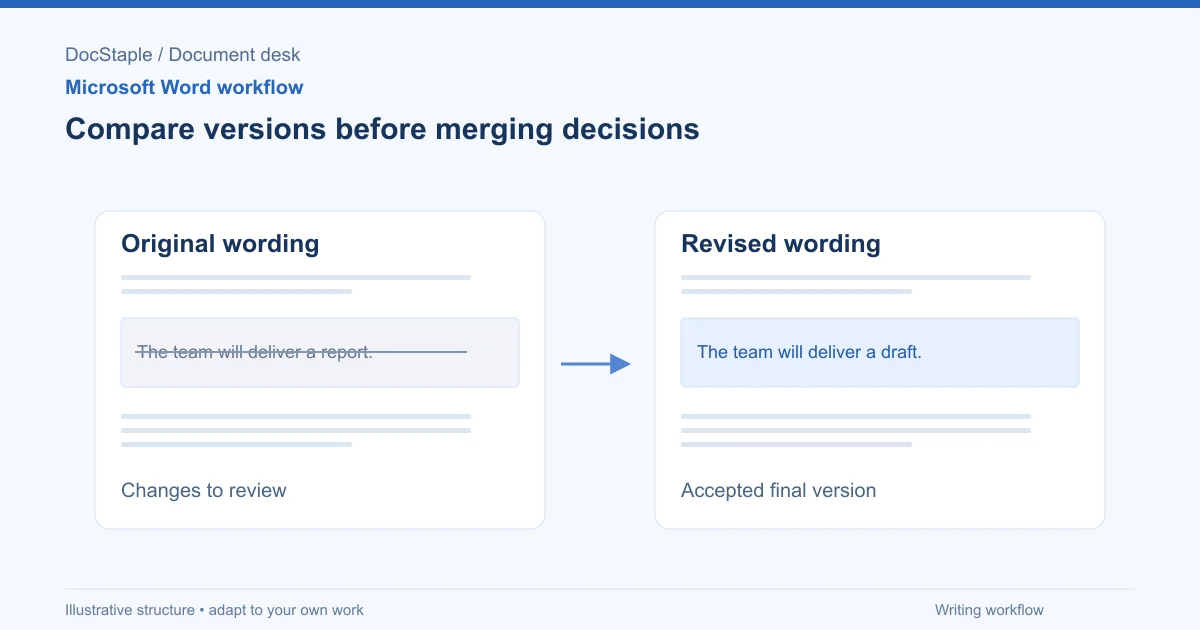
A client sends back your proposal with the note "just a few tweaks." Twenty minutes later you are still scrolling both files, wondering whether the payment terms changed or you are misremembering. Word has a built-in way to answer that question without relying on your eyes.
This guide shows how to compare two Word documents, when to combine them instead, and how to check the result. The worked example is a consulting proposal that has come back from a client with untracked edits.
Which Word versions and platforms this covers
Microsoft documents comparison across several pages, and they do not all list the same versions:
- Microsoft's page on comparing document differences using the legal blackline option lists Word for Microsoft 365, Word 2024 and Word 2021 on Windows.
- Microsoft's page on combining document revisions lists Word for Microsoft 365, Word 2024, Word 2021, Word 2019 and Word 2016.
- Microsoft's page on comparing and merging two versions of a document is written for Word 2019 for Mac.
I have not verified a comparison feature for Word for the web from these pages, so do not assume it is available there. If you are unsure, open both files in desktop Word. Menu names can vary slightly by version, so treat the sequences below as a guide and confirm against the page for your edition.
The scenario: a proposal that came back with edits
Imagine a small consultancy that sent a proposal for a six-week operations review. The client returned a file called "Proposal-v2-client.docx." Nobody turned on Track Changes, so the edits are invisible. The consultant needs to know three things before replying: what changed in the scope section, whether the fees or payment terms moved, and whether any deliverables were removed.
Start by making sure you have two clean files. Save your last sent version as "Proposal-v2-sent.docx" and keep the client's file as it arrived. You will point Word at these two, and neither should be edited during the comparison.
Compare two versions step by step
The core sequence, as Microsoft describes it, is short.
- Open one version of the document. Microsoft's legal blackline page says to open both documents to compare, so open the sent version and the client version if you want to check them first.
- Go to the Review tab and choose Compare.
- Choose the option to compare two versions of a document. On Windows, Microsoft names this Compare two versions of a document (legal blackline). On Mac, Microsoft's steps say Compare > Compare Documents.
- In the Original document field, choose the baseline version. Here, that is "Proposal-v2-sent.docx."
- In the Revised document field, choose the other version, "Proposal-v2-client.docx."
- On Windows, select the comparison options, which Microsoft describes as comments, formatting and text changes, and choose whether to show changes at character level or word level.
- Under Show changes in, keep New document selected, then select OK.
With New document selected, Word generates a separate comparison and leaves the source files unchanged. Microsoft warns that choosing Original document or Revised document under Show changes in modifies that selected file, so check the setting before proceeding. If either file already contains tracked changes, Word may ask whether to treat them as accepted before it proceeds. Microsoft's Windows steps tell you to select Yes to continue.
Read the result as a redline. Deleted and inserted text are marked, so you can move from change to change instead of reading every line. In the consulting example, this is where you would see that "Milestone review with steering group" was deleted from the deliverables list, and that the payment term changed.
Choosing the right level of detail
The Windows dialog lets you choose character-level or word-level display. Word level is easier to read for most proposals, because a changed phrase appears as a phrase. Character level is more precise, which helps when the difference is a single digit in a price or a date. If a number matters, check it at character level.
Also decide whether formatting changes matter. If the client only reflowed headings, you may not care. If they changed a table's formatting, you might. Microsoft's dialog lets you choose which elements are compared, so pick deliberately rather than accepting defaults.
When to use Combine instead of Compare
Compare answers "what is different between these two files?" Combine answers "how do I bring several reviewers' edits into one document?"
Microsoft's legal blackline page warns that if you want to compare changes from a number of reviewers, you should not use that option and should choose combining revisions from multiple authors instead. Suppose the client's finance lead and operations lead each edited their own copy of your proposal. Comparing each against your original gives you two separate redlines. Combining gives you one document.
Microsoft's combine steps are:
- Go to Review > Compare > Combine.
- Select the original document, which Microsoft describes as the version sent for review without modifications.
- Select the revised document to merge.
- Enter a name or phrase in the Label unmarked changes with field.
- Select More, and under Show changes in, choose New document.
- Select OK.
To bring in a third copy, Microsoft says to repeat the process using the saved combined document as the original document and the next copy as the revised document, this time choosing Original document under Show changes in. Microsoft also notes that you can skip this by sharing the document on OneDrive and inviting people to add their edits and comments, which avoids many separate copies in the first place.
Use View Side by Side for a quick visual check
Sometimes you only want to look at two files together. Microsoft's View and compare documents side by side page says to open both documents, then choose View > View Side by Side in the Window group. To scroll both together, select Synchronous Scrolling in the same group.
This is a visual aid. Word does not mark the differences. It is useful when you want to confirm layout, for example that a pricing table still fits on one page, but it will not tell you that a "30" became a "45" inside a paragraph. Use Compare for that.
Common formatting and permission problems
Word asks about tracked changes. If either document has tracked changes, Microsoft's Windows steps say Word asks you to accept them to proceed. Decide first whether you want them treated as accepted. If not, resolve them in a copy of the file before comparing.
You cannot open or select a file. The file may be locked, protected or held open by another person. Save a copy to a local folder and compare the copies. For protected files, ask the owner for an unprotected copy rather than trying to work around the restriction.
The comparison shows more differences than you expect. Formatting changes, different styles or reflowed tables can produce a lot of marks. Compare again with formatting turned off if the wording is what matters, and then run a second comparison with formatting on.
Comments are missing or unwanted. Microsoft's dialog lets you include or exclude comments, so check that setting. If comments are included and you plan to send the comparison to the client, review them first.
You picked the wrong original. The result shows the revised file as the changes made to the original. Swapping the two files turns an insertion into a deletion. If the redline looks backwards, run the comparison again with the files reversed.
Draft language for the reply
Once you have the redline, use it to write a precise response rather than a general one. Here is wording you could adapt:
Thank you for the updated proposal. We compared your version against the version we sent on [date] and found changes in three places: the scope description in section 2, the deliverables list in section 4, and the payment terms in section 6. We have accepted the scope wording and restored the milestone review, which we recommend keeping. Please confirm whether the revised payment terms are intended, and we will update the fee schedule to match.
Before sending anything that affects fees or obligations, have the person who owns the commercial terms review it. If terms are legally significant, ask a qualified adviser to check them. The comparison shows what changed. It does not tell you whether a change is acceptable.
Review criteria and final saved-document check
Use these criteria to review the comparison result:
- Completeness. Every change in scope, deliverables, fees and dates has been read and decided.
- Authorship. You know who made each change, particularly if you used Combine.
- Settings. Comments and formatting were included or excluded on purpose.
- Direction. The original and revised files are the right way round.
- Decision. Each change is marked as accepted, rejected or queried.
Then check the saved files:
- Confirm the original and revised files are unchanged. Microsoft says comparison leaves them as they were, but check the modified dates anyway.
- Save the comparison document under a clear name, such as "Proposal-v2-comparison-2026-09-26," so nobody mistakes it for a final version.
- Before you create the clean next version, accept or reject each change in a copy of the comparison, then save that copy as the new version, for example "Proposal-v3-draft."
- Search the new version for any leftover comments or tracked changes you do not want the client to see.
- Open the file once more from disk and scroll through it before you send it.
A comparison is only as good as the two files you give it. If your own proposals start from a consistent structure, the differences that come back are easier to read. The consulting proposal template is an editable Word file with a fixed section order, which keeps comparisons focused on wording and terms rather than layout.
Sources: Compare document differences using the legal blackline option, Microsoft Support, Combine document revisions, Microsoft Support, Compare and merge two versions of a document, Microsoft Support, View and compare documents side by side, Microsoft Support
Last updated: September 26, 2026
Frequently Asked Questions
Related Articles
How to Add a Signature in Word (Line, Image or Digital)
Learn three ways to add a signature in Microsoft Word: a plain signature line, a scanned handwritten image, and a Microsoft Office signature line, with a consulting proposal example.
How to Add Headings in Word (Apply Styles, Check Structure and Fix Problems)
Add headings in Word with built-in heading styles, customize them once, check the structure in the Navigation pane and fix common problems, using a consulting proposal as the example.
How to Add Page Numbers in Word (Step by Step)
Learn the exact menu steps for adding page numbers in Microsoft Word, skipping the cover page, restarting numbering, and fixing common problems in a business proposal.
How to Create a Template in Word (Save, Reuse and Edit a .dotx File)
Build a reusable Word template from a finished document, save it as a .dotx file, find it again under New, and check it before anyone uses it, using a consulting proposal as the worked example.
How to Create Fillable Forms in Word (Content Controls Step by Step)
Build a fillable form in Microsoft Word with content controls: show the Developer tab, add text, drop-down, date and check box fields, protect the form and test it, using a consulting proposal intake form as the example.
How to Insert a Table of Contents in Word (Step by Step)
Learn the exact menu steps for inserting an automatic table of contents in Microsoft Word, why headings matter, and how to fix common formatting problems.