How to Protect a Word Document (Password, Read-Only and Editable Sections)
Encrypt a Word document with a password, lock it against edits, or leave only chosen sections open, using a consulting proposal that a client must sign but not reprice as the worked example.
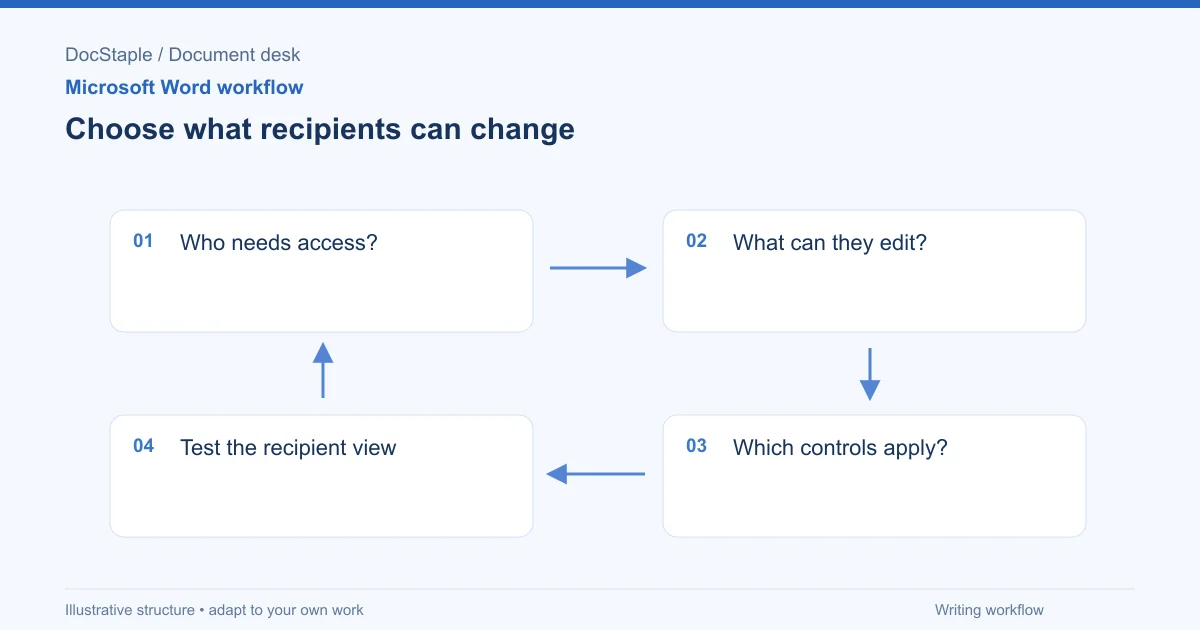
You have finished a client proposal. The fees are approved and the scope is agreed. Now you want to send it as a Word file, but you do not want the fee table quietly changed before it comes back signed.
Word gives you three tools that do different jobs: a password to open the file, a lock on editing, and a lock that leaves chosen sections open. This guide covers which to use, the steps Microsoft documents for each, and how to test the result before sending. The worked example is a consulting proposal.
Which Word versions and platforms this covers
Versions differ by Microsoft Support page:
- Microsoft's Protect a Word document with a password page lists Word for Microsoft 365, Word 2024, Word 2021 and Word 2016 on Windows and Mac.
- Microsoft's Make a document read only in Word page lists Word for Microsoft 365, Word 2024, Word 2021, Word 2019 and Word 2016.
- Microsoft's Allow changes to parts of a protected Word document page lists the same five versions.
The steps below follow the Windows menu paths, which Microsoft describes most fully. I flag the Mac and web differences I could verify. If your edition is not listed, check the current Microsoft page first.
The scenario: a proposal the client must sign, not reprice
Imagine a small consultancy sending a proposal for a six-week operations review. The document has a scope section, a timetable, a fee table and an acceptance block on the last page.
The partner has three separate worries:
- The file will travel by email, and the fees are commercially sensitive.
- The client should not be able to edit the scope or fees in the file you send.
- The client does need to type a name, title and date in the acceptance block.
Each worry maps to a different protection. Start by saving an unprotected master, for example "Proposal-v3-master.docx," and protect a copy called "Proposal-v3-client.docx." If you forget a password or need to revise the terms, you will need the master.
Option 1: Encrypt the file with a password
Use this when the concern is who can open the document at all.
Microsoft's steps for Word on Windows are:
- Select File > Info > Protect Document > Encrypt with Password.
- Enter a password and select OK.
- Enter the password again to confirm and select OK.
- Save the file so the password takes effect.
For Word on Mac, Microsoft's page describes going to Review > Protect > Protect Document. Under Security, you can require a password to open the file, to modify it, or both, and you confirm each password again.
Microsoft gives three cautions worth repeating to your team:
- Passwords are case-sensitive, and Microsoft's page says they can be a maximum of 15 characters long.
- If you forget the password, Microsoft says Word cannot recover it for you. IT administrators may only be able to help if they had implemented the DocRecrypt tool before you created the password.
- Word for the web cannot password-encrypt a document or edit an encrypted one, according to the same page. Open the file in desktop Word instead.
Send the password through a different channel from the file, such as a phone call, and record who holds it. That is an ordinary handling practice, not a Microsoft instruction, and your organization may have its own rules for confidential client material.
Option 2: Lock the document against edits
Use this when the recipient should read the proposal but not change the text.
Microsoft's steps for Word on Windows are:
- Select Review > Protect > Restrict Editing.
- Under Editing restrictions, select Allow only this type of editing in the document and choose No changes (Read only).
- Select Yes, Start Enforcing Protection.
- Enter a password twice if you want one. It is optional.
The password decision matters. Microsoft's page says that if you do not add a password, anyone can select Stop Protection and edit the document. Without a password, the lock only prevents accidents, not deliberate edits.
Microsoft also documents File > Info > Protect Document > Always open Read-Only. That sets the default to read-only, but recipients can still choose to switch to editing when they open it. Treat it as a nudge, not a barrier.
What read-only does not do
Microsoft is direct about the limit: making a document read-only does not prevent someone from making a new copy and saving it with a different name or in a different place. If you are worried the client might reuse your fee table elsewhere, editing restrictions will not stop that. Confidentiality terms are a matter for your agreement with the client and a qualified adviser.
Option 3: Lock everything except the parts that need input
For the example proposal, this is the best fit. The scope and fees are locked, and the acceptance block stays open.
Microsoft's steps for Word on Windows are:
- On the Review tab, select Restrict Editing.
- Select Allow only this type of editing in the document and choose No changes (Read only).
- Select the parts of the document that should stay editable. Microsoft says you can select paragraphs, headings, sentences or individual words, and hold Ctrl to pick several separate parts.
- Under Exceptions, tick Everyone to let anyone edit the selected parts, or select More users to name specific people.
- Select Yes, Start Enforcing Protection.
- Choose a method. You can enter a password, or use user authentication, which Microsoft says encrypts the document so only authenticated owners can remove the protection.
Microsoft notes that user authentication prevents simultaneous multi-user editing, so it is a poor fit if several of your colleagues need to work in the file at once. To remove protection later, you need the password or authenticated-owner status, then Review > Restrict Editing > Stop Protection.
In the consulting proposal, you would select only the acceptance block: name, title, date and signature line. Everything else stays locked. The client can complete the section and return the file, and cannot change the fee table in the copy you sent.
Common problems
Stop Protection appears for the recipient. You did not set a password when you started enforcing protection. Microsoft says without one, anyone can stop protection. Reapply it with a password on a copy.
The client cannot open the file. Check the password, since it is case-sensitive. If they use Word for the web, Microsoft says it cannot edit encrypted files, so ask them to use desktop Word.
The editable section will not accept typing. The exception may not cover the right text or person. Reopen the Restrict Editing pane, confirm the selected parts and the Everyone or named-user setting, and reapply protection.
You forgot your own password. Microsoft says Word cannot recover it. Go back to the unprotected master and protect a fresh copy.
Draft language, review criteria and final check
Here is wording you could adapt for the cover note:
The attached proposal is protected so that only the acceptance block on page 6 can be edited. Please complete your name, title and date there and return the file. If you need any change to scope, timetable or fees, tell us and we will issue a revised version. We will send the password to open the file separately.
Before you send, check these criteria:
- Right protection for the risk. A password limits who can open it, and restricted editing limits changes. Do not rely on read-only to prevent copying.
- Password recorded safely. Someone besides the person who set it can find it, and it is not in the same email as the file.
- Editable parts limited to what the client must complete.
- Master preserved. The unprotected version is saved separately with its own name.
- Approval recorded. The person who owns the commercial terms has approved the final text before protection is applied.
Final saved-document check
Protection is easy to apply and easy to misjudge, so test the file you will send:
- Save the protected copy under its own name, such as "Proposal-v3-client."
- Close it and reopen it from disk. Confirm the password prompt appears if you set an open password.
- Try to type in a locked section. It should be refused.
- Try to type in the acceptance block. It should accept your entry.
- Check whether Stop Protection is offered without asking for a password.
- Read the final text once, especially fees, dates and deliverables, because you cannot easily fix them after the file is out.
If a consistent structure makes this easier, the consulting proposal template is an editable Word file with fixed sections and an approval record, so it is clear which block to leave open. Protection settings are yours to apply after you complete the document, and they do not replace review by the people responsible for the commercial and legal terms.
Sources: Protect a Word document with a password, Microsoft Support, Make a document read only in Word, Microsoft Support, Allow changes to parts of a protected Word document, Microsoft Support
Last updated: September 26, 2026
Frequently Asked Questions
Related Articles
How to Add a Signature in Word (Line, Image or Digital)
Learn three ways to add a signature in Microsoft Word: a plain signature line, a scanned handwritten image, and a Microsoft Office signature line, with a consulting proposal example.
How to Add Headings in Word (Apply Styles, Check Structure and Fix Problems)
Add headings in Word with built-in heading styles, customize them once, check the structure in the Navigation pane and fix common problems, using a consulting proposal as the example.
How to Add Page Numbers in Word (Step by Step)
Learn the exact menu steps for adding page numbers in Microsoft Word, skipping the cover page, restarting numbering, and fixing common problems in a business proposal.
How to Compare Two Word Documents (Compare, Combine and Side by Side)
Compare two versions of a Word document with Review > Compare, know when to use Combine instead, and run a final check on the result, using a consulting proposal that came back from the client with edits.
How to Create a Template in Word (Save, Reuse and Edit a .dotx File)
Build a reusable Word template from a finished document, save it as a .dotx file, find it again under New, and check it before anyone uses it, using a consulting proposal as the worked example.
How to Create Fillable Forms in Word (Content Controls Step by Step)
Build a fillable form in Microsoft Word with content controls: show the Developer tab, add text, drop-down, date and check box fields, protect the form and test it, using a consulting proposal intake form as the example.