How to Remove Comments in Word (One, All or Before You Send)
Delete a single comment, delete every comment in a Word document, and check for leftovers before a proposal goes to a client, using a consulting proposal with internal review notes as the example.
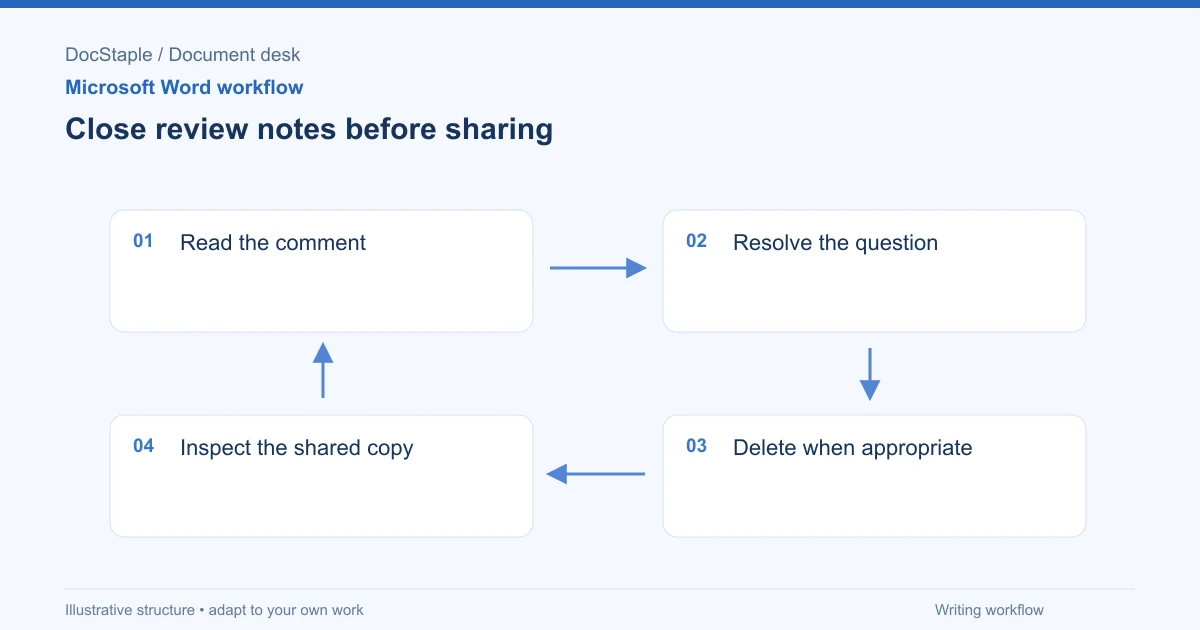
You have finished the internal review of a client proposal. The margin is full of notes such as "Can we go lower on the fee?" and "Ask Priya to confirm this date." None of that should reach the client. Removing comments takes seconds, but doing it safely takes a little more care, because deletion is permanent.
This guide covers how to delete one comment, how to delete all of them, and how to confirm the file is clean before sending. The worked example is a consulting proposal that has been through internal review.
Which Word versions and platforms this covers
Microsoft's comment instructions are spread across several pages, and each lists different versions:
- Microsoft's Insert, delete, or change a comment page is written for Word 2019 for Mac. It is the page where I verified the Review tab sequences below.
- Microsoft's Give and receive feedback in Word page lists Word for Microsoft 365, Word 2024, Word 2021 (including the Mac editions of each), Word for iPad and Word Web App.
- Microsoft's Document Inspector page lists Word for Microsoft 365, Word 2021, Word 2019 and Word 2016.
The button names on the Review tab may differ slightly between Windows, Mac and the web, and between the classic and newer comment experiences. Treat the steps as a guide and check the page for your own edition. I have not verified a "delete all" command for Word for the web, so if you work there, look at what your Delete menu offers before assuming it exists.
The scenario: a proposal after internal review
Picture a small consultancy that has drafted a proposal for a six-week operations review. Three colleagues have commented on the file. One flagged a discount the partner has not approved. One asked for a stronger case study. One noted that a start date depends on the client's data access.
The partner now wants to send the proposal. Before anything else, save the reviewed version as its own file, for example "Proposal-v2-internal-reviewed.docx." That copy keeps the discussion history. The version you clean up and send is a separate file.
Delete a single comment
Use this when you want to act on comments one at a time, for instance after fixing each point.
Microsoft's steps for Word 2019 for Mac are:
- On the Review tab, in the Comments section, select Next to select a comment.
- On the Review tab, select Delete.
In the consulting example, you would step through the comment about the start date, update the timetable text to say delivery begins after the client provides data access, then delete the comment. Working one at a time means every note is answered before it disappears.
Microsoft's comment guidance describes a natural order: reply to a comment, resolve it, or delete it, and after you have resolved or replied to the comments you can clean up the document by deleting them. It also warns that when you delete a comment, it is gone for good, so keep comments until you are finalizing the document.
Delete all comments at once
When every note has been dealt with, remove them in one action.
Microsoft's steps for Word 2019 for Mac are to select the arrow beside Delete and then choose Delete All Comments in Document.
Two cautions apply.
Make sure you are done. This command removes every comment, including ones you have not read. Scroll through the comments pane first. If someone left a note that changes the fee or a deliverable, act on it before you delete anything.
Keep a record. If you may need to explain later why a term changed, keep the internal-reviewed copy you saved earlier. Do not overwrite it.
If you use the newer comment experience
Microsoft's modern comments page lists Word for Microsoft 365 and Word for Microsoft 365 for Mac. It says you can delete, get a link to, or resolve a comment thread by selecting More thread actions (the three dots). Microsoft's modern comments overview also says resolved threads stay out of the margin, though you can still find them in the Comments pane. A resolved thread is hidden, not deleted, so it can still travel with the file.
Check for leftovers with the Document Inspector (Windows)
The following File > Info commands are for Word on Windows. Microsoft states that Word for Mac has no Document Inspector. On Mac, review comments and tracked changes manually; if your process requires the inspector, have a colleague inspect a copy in Windows Word.
Deleting the comments you can see is not always the whole job. Hiding markup is not the same as removing it, and a proposal can also carry tracked changes or personal details in its properties.
Microsoft's Document Inspector page gives these steps for Word:
- On the File tab, select Info.
- Choose Check for Issues, then Inspect Document.
- Select the types of content to inspect, then select Inspect.
- Review the results and select Remove All beside any type of content you want to remove.
- Select Reinspect or Close.
Microsoft says the inspector finds comments and revision marks from tracked changes, among other things. It also gives two warnings. First, if you remove hidden content, you might not be able to restore it with Undo. Second, Microsoft highly recommends using the Document Inspector on a copy of your original document, because it is not always possible to restore the data it removes.
Think before you remove revision marks. In a proposal, tracked changes may show the client what you edited. Decide whether you want them accepted or rejected first, then run the inspector on the copy.
Common problems
A comment keeps appearing after you deleted it. You may be looking at an older file. Check the file name and modified date, and reopen the document from disk.
You cannot find a comment. The comment may be resolved and shown only in the Comments pane. Open the pane and look there.
The Delete button is unavailable. The document may be protected, read-only or open in another window. Save a copy to a local folder and work on the copy. If the file is protected, ask the owner for an unprotected version instead of working around the restriction.
You deleted comments you needed. Close without saving if you have not yet saved, or return to the internal-reviewed copy. This is why saving a copy first matters.
Hand-off wording, review criteria and final check
If you send the proposal to a colleague for final sign-off, tell them exactly what state the file is in. Here is wording you could adapt:
The attached proposal has had all internal comments resolved and deleted. The reviewed version with comments is saved as "Proposal-v2-internal-reviewed." Changes made in response to comments: start date now depends on data access (section 3); case study added (section 2). The fee discount was not approved and has been removed from section 5. Please confirm before we send.
The note records what happened to each comment, so deletion does not erase the decision trail.
Review criteria and final saved-document check
Use these criteria before you send:
- Every comment answered. Each note was acted on, replied to or consciously dismissed.
- Nothing sensitive remains. No internal pricing thoughts, staff comments or client-specific notes for other clients.
- Right copy. The internal-reviewed version is saved separately from the version you send.
- Inspection done. In Windows Word, the Document Inspector was run on a copy and its results reviewed. On Mac, the manual review is complete, with Windows inspection arranged if required.
- Approval recorded. The person who owns the commercial terms has approved the final text.
Then check the saved file:
- Save the clean version under a new name, such as "Proposal-v3-client-ready."
- Close it, then reopen it from disk.
- Confirm the Comments pane is empty and no balloons appear in the margin.
- Look at the Review tab to confirm there are no tracked changes you did not intend to keep.
- Read the final text once, especially fees, dates and deliverables.
Starting from a consistent structure makes this cleanup easier, because the review notes cluster around known sections. The consulting proposal template is an editable Word file with a fixed section order and an approval record, which can help you track what was reviewed before the comments are removed.
Sources: Insert, delete, or change a comment, Microsoft Support, Give and receive feedback in Word, Microsoft Support, Modern comments in Word, Microsoft Support, Remove hidden data and personal information by inspecting documents, Microsoft Support
Last updated: September 26, 2026
Frequently Asked Questions
Related Articles
How to Add a Signature in Word (Line, Image or Digital)
Learn three ways to add a signature in Microsoft Word: a plain signature line, a scanned handwritten image, and a Microsoft Office signature line, with a consulting proposal example.
How to Add Headings in Word (Apply Styles, Check Structure and Fix Problems)
Add headings in Word with built-in heading styles, customize them once, check the structure in the Navigation pane and fix common problems, using a consulting proposal as the example.
How to Add Page Numbers in Word (Step by Step)
Learn the exact menu steps for adding page numbers in Microsoft Word, skipping the cover page, restarting numbering, and fixing common problems in a business proposal.
How to Compare Two Word Documents (Compare, Combine and Side by Side)
Compare two versions of a Word document with Review > Compare, know when to use Combine instead, and run a final check on the result, using a consulting proposal that came back from the client with edits.
How to Create a Template in Word (Save, Reuse and Edit a .dotx File)
Build a reusable Word template from a finished document, save it as a .dotx file, find it again under New, and check it before anyone uses it, using a consulting proposal as the worked example.
How to Create Fillable Forms in Word (Content Controls Step by Step)
Build a fillable form in Microsoft Word with content controls: show the Developer tab, add text, drop-down, date and check box fields, protect the form and test it, using a consulting proposal intake form as the example.