How to Use Track Changes in Word (Turn It On, Review and Finalize)
Turn on Track Changes in Word, choose what to track, review edits by author, accept or reject changes, and check the saved file before a consulting proposal goes to a client.
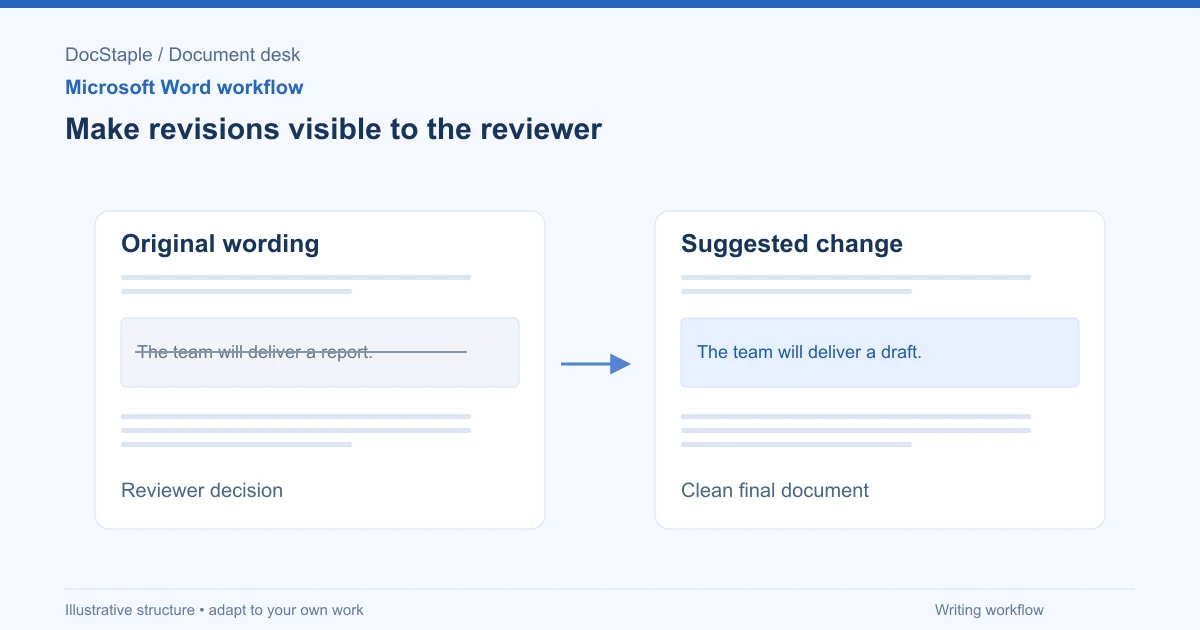
A colleague sends back the client proposal with three paragraphs rewritten, a fee sentence deleted and a new assumption added. Without tracking, you would have to compare the two files line by line to find out what changed. With Track Changes on, Word records each edit so you can see it, accept it or reject it.
This guide covers how to turn Track Changes on, decide whose edits to track, review the markup and finalize the file. The worked example is a consulting proposal that passes between an engagement lead, a partner and a finance reviewer.
Which Word versions and platforms this covers
Microsoft's Track changes in Word page lists Word for Microsoft 365, Word 2024, Word 2021, Word 2019, Word 2016, Word for iPad, Word for iPhone and Word Web App. Its accept and reject instructions on Accept or reject tracked changes in Word cover the same family, including the Mac editions of the newer versions.
The steps below follow those two pages. Button labels can differ between Windows, Mac, mobile and the web, so if a command is not where I describe it, check the Microsoft page for your edition. I have not tested every mobile screen, so I do not describe mobile menus in detail here.
The scenario: a proposal with three reviewers
Imagine a small consultancy preparing a proposal for a six-week operations review. The engagement lead writes the first draft. The partner adjusts the scope and tone. A finance reviewer checks the fee schedule and payment terms.
Before anyone edits, save a working copy such as "Ops-review-proposal-v2-review.docx." Keep the original untouched. If tracking goes wrong, you still have a clean starting point.
Turn Track Changes on
Microsoft's steps for Windows and the web are:
- Open the Review tab.
- Select Tracking, then Track Changes.
- Choose For Everyone or Just Mine.
On macOS, Microsoft says to go to the Review tab, select Track Changes and pick your preference from the dropdown.
Microsoft explains the choice this way: For Everyone tracks everyone's changes, and Just Mine tracks only your own. For the shared proposal, use For Everyone. If the finance reviewer edits the payment terms while tracking is set to Just Mine on someone else's machine, those edits could disappear into the text unmarked, which defeats the point of the review.
Turn tracking on before the first edit. Word records changes made after tracking is enabled, so anything typed before that point looks like original text.
Choose how much markup you see
A heavily edited proposal can be hard to read with every change visible. Microsoft describes four views:
- Simple Markup shows tracked changes with a red line in the margin.
- All Markup shows changes in different colors of text and lines for each reviewer.
- No Markup hides the markup and shows the document with the changes incorporated.
- Original shows the document without tracked changes or comments.
For the consulting example, use All Markup while you check who changed what. The page says different authors' changes are indicated with different colors, which helps when the partner and the finance reviewer both edited the same section. Switch to Simple Markup to read the flow of the text, and No Markup to see roughly how the clean version will look.
Be careful with No Markup. Microsoft is explicit that it only hides changes temporarily and that they are visible again the next time someone opens the document. A proposal can look clean on your screen and still carry every tracked edit when it reaches the client.
Review, accept and reject changes
Microsoft's accept and reject steps are:
- Click or tap at the beginning of the document.
- On the Review tab, go to Tracking.
- Select Accept or Reject.
As you accept or reject a change, Word moves to the next one, and you repeat until you have reviewed them all. You can also right-click an individual change and choose to accept or reject it. Microsoft adds that you can select a change to open a small floating menu with the same options.
Working from the top of the document matters. If you start in the middle, you may skip changes earlier in the text.
Accept or reject all changes
For a single action, Microsoft says to open the Accept drop-down and select Accept All Changes, or open the Reject drop-down and select Reject All Changes.
Use these only when you have read every change. In the example, accepting all would also accept a deleted sentence that removed the client's responsibility to provide data access. That sentence should not disappear without the engagement lead noticing.
A practical review order for the proposal
Go through the proposal in the order a client reads it:
- Client need and outcome. Do the edits still match what the client asked for?
- Scope and exclusions. Was anything added that the team cannot deliver, or removed that the client expects?
- Timetable and dependencies. Do dates still depend on client inputs?
- Fees and acceptance. Are amounts, payment schedule and acceptance conditions consistent with what was approved?
Rejecting a change is a normal outcome. It does not mean the reviewer was wrong; it means the text needs a different fix, which is worth saying to them directly.
Wording to use when sending a tracked draft
Tracked edits show what changed, not why. Add a short note when you hand the file over. Here is wording you could adapt:
Attached is v2 with tracked changes from the partner and finance review. Please review the changes in section 3 (timetable now depends on data access) and section 5 (payment split changed from 50/50 to 40/60). Do not accept the fee change until finance confirms. Please return the file with your edits tracked.
The note tells the reader what to look at and what not to accept early. It also asks them to keep tracking on.
Common problems and permission issues
Edits are not being tracked. Check the Review tab to confirm Track Changes is on. Also check whether it is set to Just Mine, since on that setting only the current user's changes are tracked.
Someone turned tracking off. Microsoft describes locking tracking with a password: on the Review tab, select Protect Document and enter a password. This prevents others from disabling Track Changes. Microsoft warns you must remember the password, because you need it to turn Track Changes off when you are ready to accept or reject the changes. Only use a lock if your team agrees, and store the password where the document owner can recover it.
The document looks clean but is not. You are probably in No Markup view. Switch to All Markup and check.
You cannot accept or reject changes. The file may be protected, read-only or open in another window. Save a copy, or ask the owner for an unprotected version. Do not try to work around a protection someone else set deliberately.
Comments are still in the file. Tracked changes and comments are different things. Accepting or rejecting changes does not necessarily deal with margin comments, so review them separately.
Finalize the proposal: review criteria and saved-file check
Before the proposal leaves your organization, use these criteria:
- Every change resolved. Each tracked edit was accepted or rejected on purpose.
- Fees and dates confirmed. The person who owns the commercial terms approved the final text.
- Right version. The tracked review copy is saved separately from the copy you send.
- Nothing hidden. No unwanted markup, comments or personal details remain.
- Approval recorded. The reviewer who signs off is named and dated in your own records.
Microsoft's Document Inspector page lists comments and revision marks from tracked changes among the content it can find, and Microsoft recommends running it on a copy of your original document. Removed content may not be restorable, so do not run it on your only version.
Then do a final saved-file check:
- Save the finished version under a new name, such as "Ops-review-proposal-v3-client-ready.docx."
- Close it and reopen it from disk.
- Switch to All Markup and confirm no tracked changes appear.
- Confirm the Comments pane is empty.
- Read the final text once, especially fees, dates, deliverables and exclusions.
A consistent structure makes tracked review easier, because reviewers know which section holds which decision. The consulting proposal template is an editable Word file with a fixed section order and an approval section, which gives your reviewers a shared layout to mark up.
Last updated: September 26, 2026
Frequently Asked Questions
Related Articles
How to Add a Signature in Word (Line, Image or Digital)
Learn three ways to add a signature in Microsoft Word: a plain signature line, a scanned handwritten image, and a Microsoft Office signature line, with a consulting proposal example.
How to Add Headings in Word (Apply Styles, Check Structure and Fix Problems)
Add headings in Word with built-in heading styles, customize them once, check the structure in the Navigation pane and fix common problems, using a consulting proposal as the example.
How to Add Page Numbers in Word (Step by Step)
Learn the exact menu steps for adding page numbers in Microsoft Word, skipping the cover page, restarting numbering, and fixing common problems in a business proposal.
How to Compare Two Word Documents (Compare, Combine and Side by Side)
Compare two versions of a Word document with Review > Compare, know when to use Combine instead, and run a final check on the result, using a consulting proposal that came back from the client with edits.
How to Create a Template in Word (Save, Reuse and Edit a .dotx File)
Build a reusable Word template from a finished document, save it as a .dotx file, find it again under New, and check it before anyone uses it, using a consulting proposal as the worked example.
How to Create Fillable Forms in Word (Content Controls Step by Step)
Build a fillable form in Microsoft Word with content controls: show the Developer tab, add text, drop-down, date and check box fields, protect the form and test it, using a consulting proposal intake form as the example.